
Asset List
Asset List
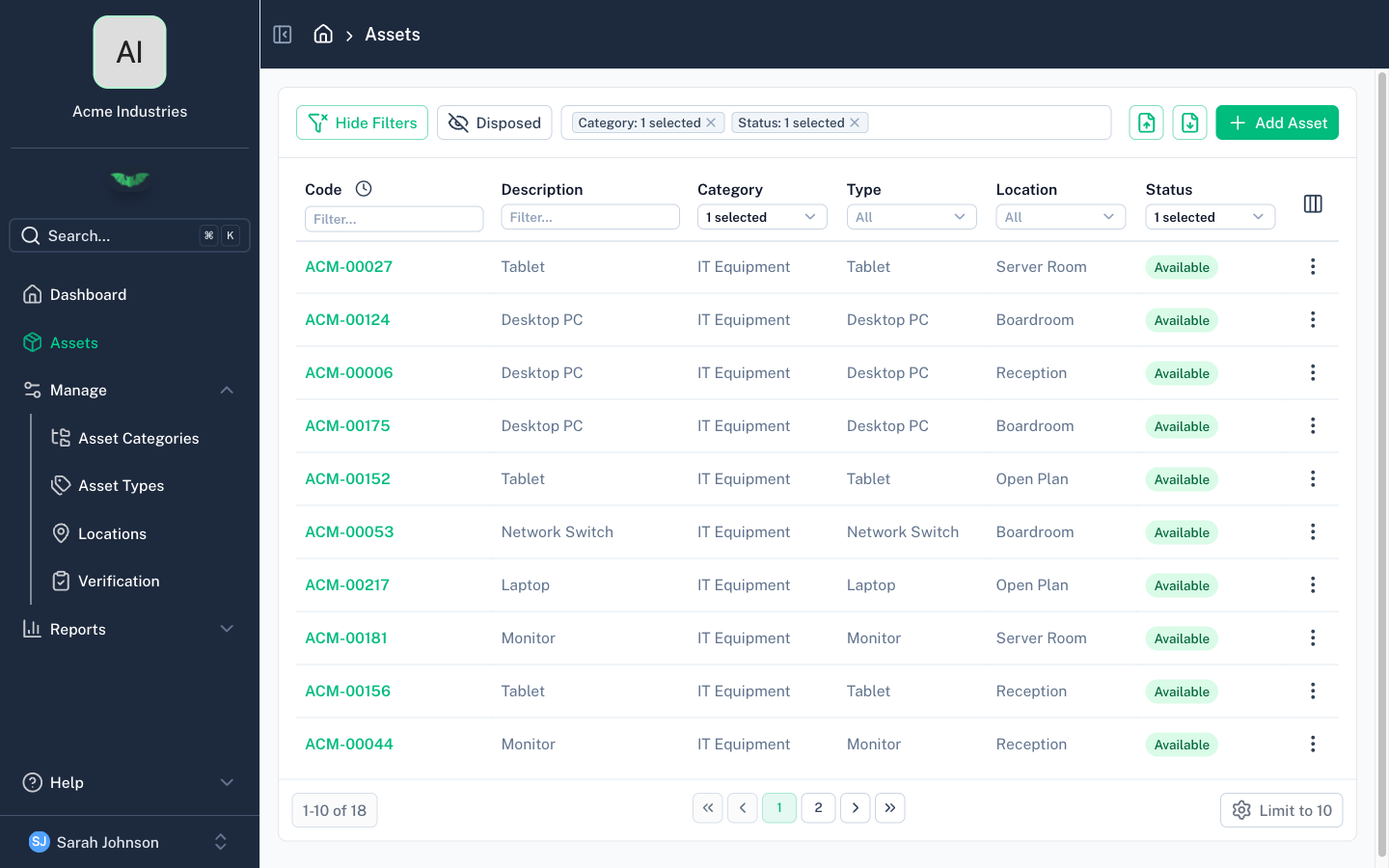
The asset list is the main view for browsing your organisation's assets. On desktop it displays as a table; on mobile it switches to cards.
Searching
The search bar at the top filters assets by code, description, serial number, and other text fields. Results update as you type.
Filtering
Filtering capability differs between web and mobile.
On the web, you can filter across many columns simultaneously — category, type, location, status, condition, assignee, make, model, and more. Multiple filters stack, so selecting a category and a status shows only assets matching both. Active filters are shown as chips above the list.
On mobile, filtering is limited to the main asset fields: category, type, location, and status.
Sorting
Click any column header to sort by that column. Click again to reverse the sort order. The current sort is indicated by an arrow in the column header.
Column Visibility
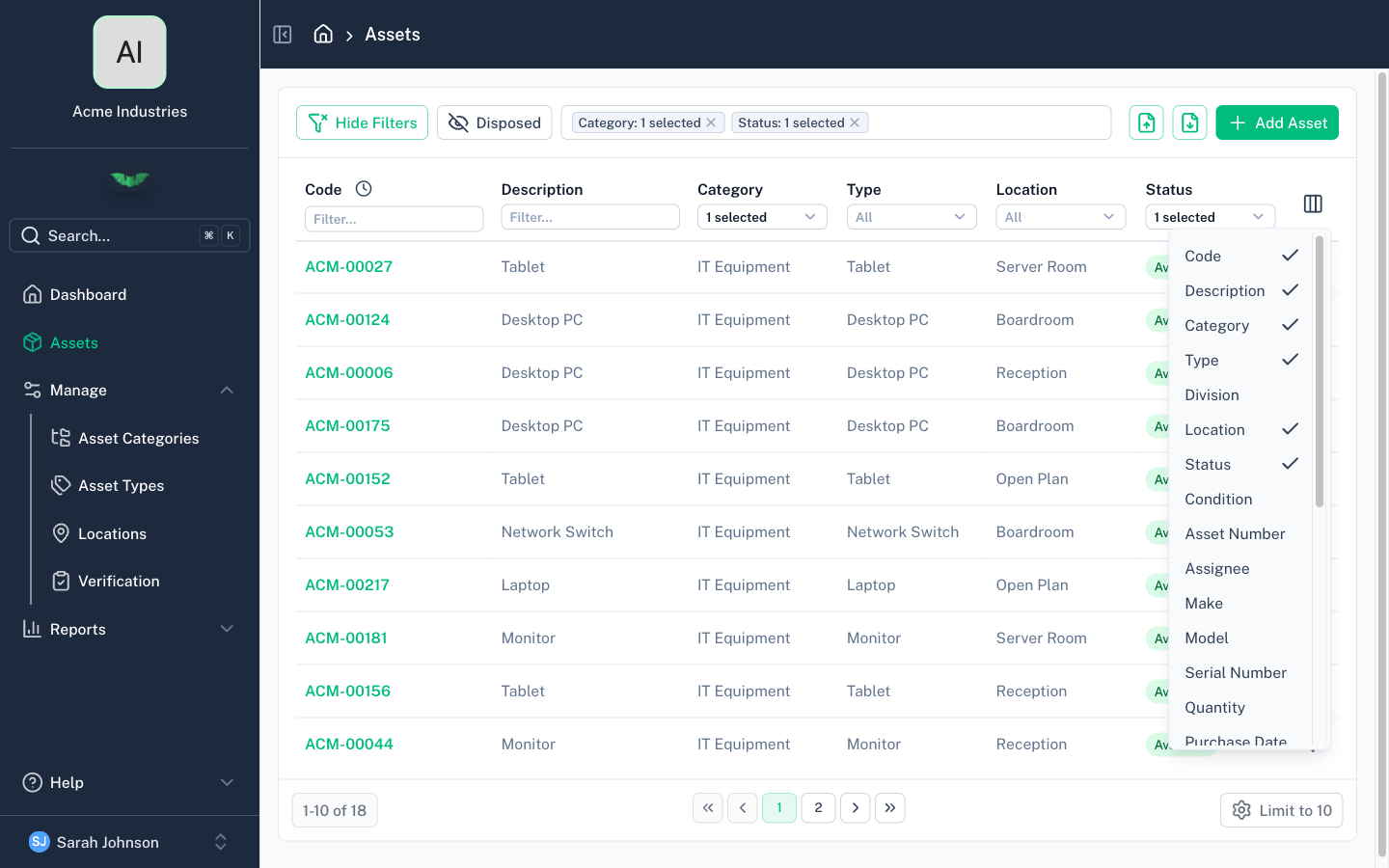
Not all columns are relevant to every organisation. Use the column visibility control to show or hide columns. Your selection is saved per browser.
Available columns include: code, description, type, category, location, status, condition, assignee, serial number, asset number, make, model, purchase price, purchase date, and any custom fields your organisation has defined.
Desktop vs Mobile
- Desktop — Full table with sortable columns, inline actions, and pagination
- Mobile — Card layout showing key fields. Tap a card to open the asset detail view
Pagination
The list is paginated. Navigation controls at the bottom let you move between pages. Your current page position is preserved while browsing.