
Import
Import
batapp supports several CSV import workflows. Use them to set up your asset structure quickly or update existing data in bulk.
Asset Import
Asset import is used from the Assets page. There are two asset import modes:
- Full import for creating new assets in bulk
- Purchase import for updating purchase data on existing assets
Full Import
Use full import to create new assets in bulk.
Required Columns
| Column | Notes |
|---|---|
| Code | Unique asset identifier |
| Category Name | Type name |
| Type Name | Type name |
| Description | Asset description |
| Location Path | Location path (e.g. Head Office / Floor 2 / Room 201) |
| Status | Must match a valid status name |
Optional Columns
All other asset fields are optional, including:
- Category Code, Type Code, and Location Code
- Condition
- Make, model, serial number, asset number, assignee, quantity
- Purchase price, purchase date, supplier, invoice number, cost centre
- Previous asset code, notes
- Geolocation fields (if enabled)
- Legacy custom fields and custom configured fields
Auto-Creation During Full Import
Full import can create related records automatically when needed:
- Categories are created if the category name does not already exist
- Types are created if the type does not already exist in that category
- Locations are created from the path if the location does not already exist
If you include category, type, or location codes, batapp uses those codes for the newly created records. If you leave them blank, batapp generates the next available code automatically.
Template
Download the template from the import panel. The template includes all available columns based on your organisation settings, including optional fields that are currently enabled.
Purchase Import
Use purchase import to update existing assets with financial data. This is useful when purchase records are maintained separately (e.g. in an accounting system).
| Column | Required | Notes |
|---|---|---|
| Code | Yes | Must match an existing asset code |
| Purchase Price | Yes | Numeric value |
| Purchase Date | No | Format: YYYY-MM-DD |
| Supplier | No | |
| Invoice Number | No | |
| Cost Centre | No |
Purchase import only updates existing assets. It does not create new assets.
Asset Type Import
Asset types can also be imported directly from the Categories & Types page.
This is useful when you want to set up your classification structure before importing assets.
Columns
| Column | Required | Notes |
|---|---|---|
| Category Name | Yes | Categories are created automatically if they do not exist |
| Type Name | Yes | Must be unique within the category |
| Type Code | No | If blank, batapp generates the next available code |
Behaviour
- Duplicate type names in the same category are blocked
- Duplicate type codes are blocked
- Existing types in the same category are not imported again
Location Import
Locations can be imported directly from the Locations page.
This is useful when you want to build your full location tree before importing assets.
Columns
| Column | Required | Notes |
|---|---|---|
| Location Path | Yes | Use slash-separated paths such as Head Office/Floor 1/Board Room |
| Code | No | Used for the final location in the path |
| Type | No | asset or grouping; defaults to asset for the final location |
Behaviour
- batapp creates intermediate parent locations automatically
- Parent locations are created as grouping locations
- The final location in each path can be either asset or grouping
- Duplicate paths and duplicate codes are blocked
Import Process
All import workflows follow the same basic process:
- Upload your CSV file
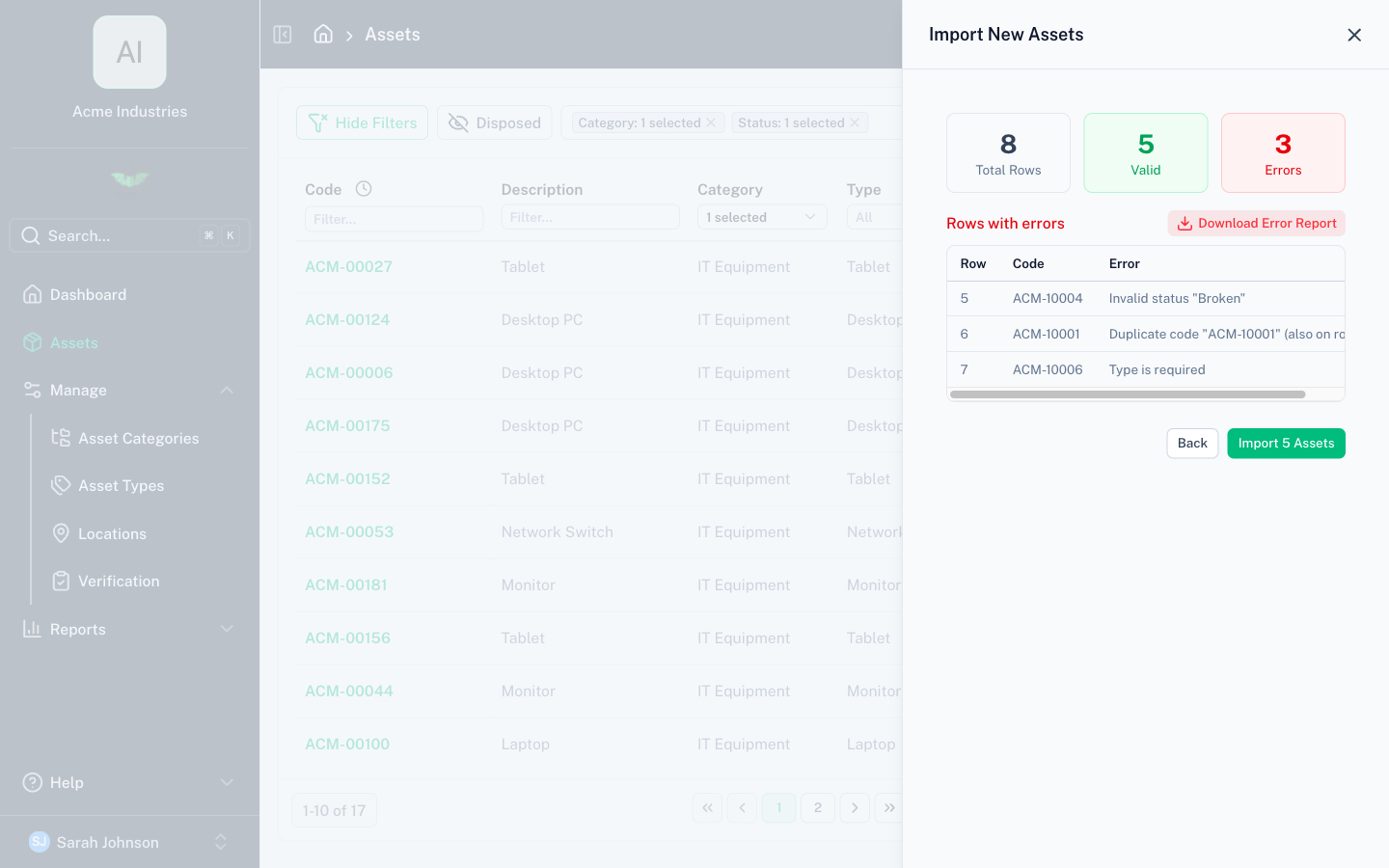
- Preview — batapp validates every row and shows errors inline
- Fix any validation errors in your CSV and re-upload, or proceed with valid rows
- Import — batapp processes the valid rows
Validation
batapp checks for:
- Required fields present and non-empty
- Duplicate values within the file where uniqueness is required
- Conflicts with existing records
- Valid status and condition values where applicable
- Valid date formats
- Numeric values where expected
- Valid location and import-specific field values
Error Handling
Rows that fail validation are listed with the specific error. You can:
- Fix the errors in your CSV and re-upload
- Download an error CSV containing only the failed rows
- Import the valid rows and deal with errors separately
Permissions
Import is intended for users who can manage setup data, typically Admin users.
For asset imports, users need full location access so batapp can validate rows efficiently. If your organisation uses location-based restrictions, admins still have the required access.