
Locations
Locations
Locations represent where assets physically are. They support a parent–child hierarchy that mirrors your physical layout.
Location Hierarchy
Build a tree that reflects your organisation's structure:
Head Office
├── Ground Floor
│   ├── Reception      (asset location: HO-GF-REC)
│   └── Boardroom      (asset location: HO-GF-BR)
└── First Floor
    ├── Open Plan       (asset location: HO-F1-OP)
    └── Server Room     (asset location: HO-F1-SR)

Regional Office
└── Main Area           (asset location: RO-MA)
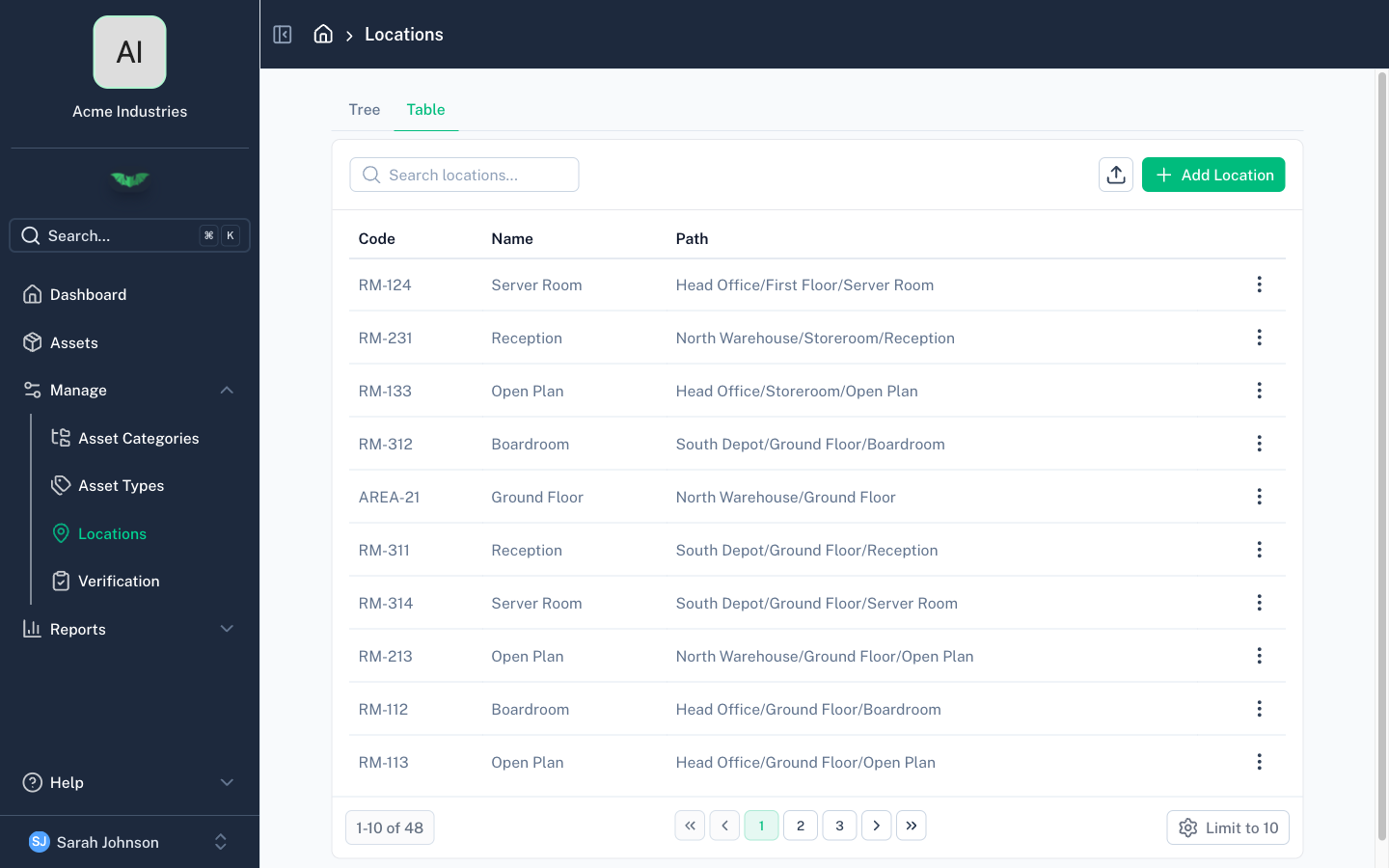
Each location's path is calculated automatically from its ancestors (e.g. Head Office / First Floor / Server Room). This path appears in asset lists, filters, and reports.
Location Types
Every location is one of two types:
Asset Location
- Can have assets assigned to it
- Requires a unique code
- Appears in the location dropdown when adding or editing assets
- Examples: individual rooms, bays, storage areas
Grouping Location
- Organisational only — cannot have assets assigned directly
- Code is optional
- Used to build the hierarchy
- Examples: buildings, floors, regions
Managing Locations
Navigate to the locations page from the sidebar. The list shows locations with their paths, types, and codes.
- Add a new location — choose a parent (or none for a top-level location), set the type, name, and code
- Import locations in bulk from CSV
- Edit a location's name, code, type, or parent
- Delete a location (only if no assets are assigned to it and it has no child locations)
Bulk Import
Use Import Locations on the locations page to create a full location hierarchy from a CSV file.
- Enter each row as a slash-separated
Location Path, for exampleHead Office/Floor 1/Reception - batapp creates any missing intermediate parent locations automatically
- Parent locations are created as grouping locations
- The final location can be imported as either an asset or grouping location
- If the final location is an asset location and no code is supplied, batapp generates the next available code
Location-Based Access Control
When enabled, members can be restricted to specific locations. Restricted members can only see and manage assets at their assigned locations. Contact [email protected] to have location-based access enabled for your organisation.
Tips
- Start simple — You can add more granularity later. Begin with your main sites and key areas.
- Use meaningful codes — Location codes appear in exports and reports. Short, recognisable codes work best.
- Grouping vs asset — If a location will never directly hold an asset (e.g. a floor or building), make it a grouping location to keep dropdowns clean.