
Add & Edit Assets
Add & Edit Assets
Assets are the core records in batapp. This page covers creating new assets, editing existing ones, and the actions available on an asset.
Creating an Asset
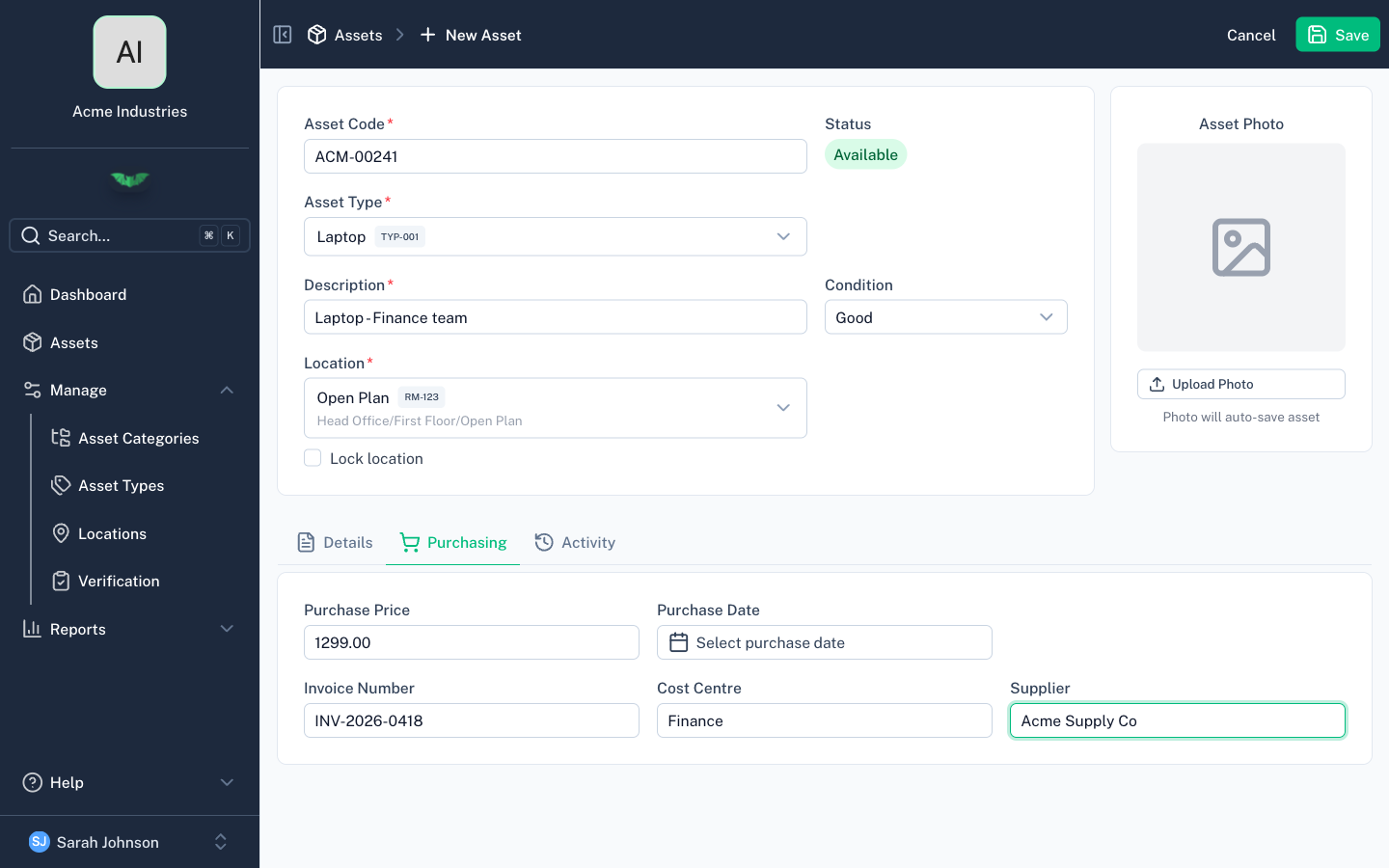
From the asset list, tap Add Asset. The asset form has three tabs.
Main Tab
The main tab contains the required fields:
| Field | Required | Notes |
|---|---|---|
| Code | Yes | Unique identifier within your organisation (e.g. 9981176214, IT-001) |
| Type | Yes | What the asset is (determines the category automatically) |
| Description | Yes | Extra detail for the asset |
| Location | Yes | Where the asset physically is |
| Status | Yes | Defaults to Available |
| Condition | Yes/No | Configurable for your organisation |
Details Tab
Additional identifying information:
- Make and Model — Manufacturer details
- Asset Number — Alternative reference number
- Serial Number — Manufacturer serial (can be populated by barcode scan)
- Assignee — Person responsible for the asset
- Quantity — Number of items (defaults to 1)
- Notes — Free-text notes
- Custom Fields — Any custom fields your organisation has defined
If geolocation is enabled, the details tab also shows captured GPS coordinates and address.
Purchasing Tab
Financial and procurement information:
- Purchase Price — Price the asset was purchased for
- Purchase Date — When the asset was acquired
- Invoice Number
- Cost Centre
- Supplier
Editing an Asset
Open an asset from the list to view its details. Edit any field and save. Changes sync automatically to all users.
Asset Actions
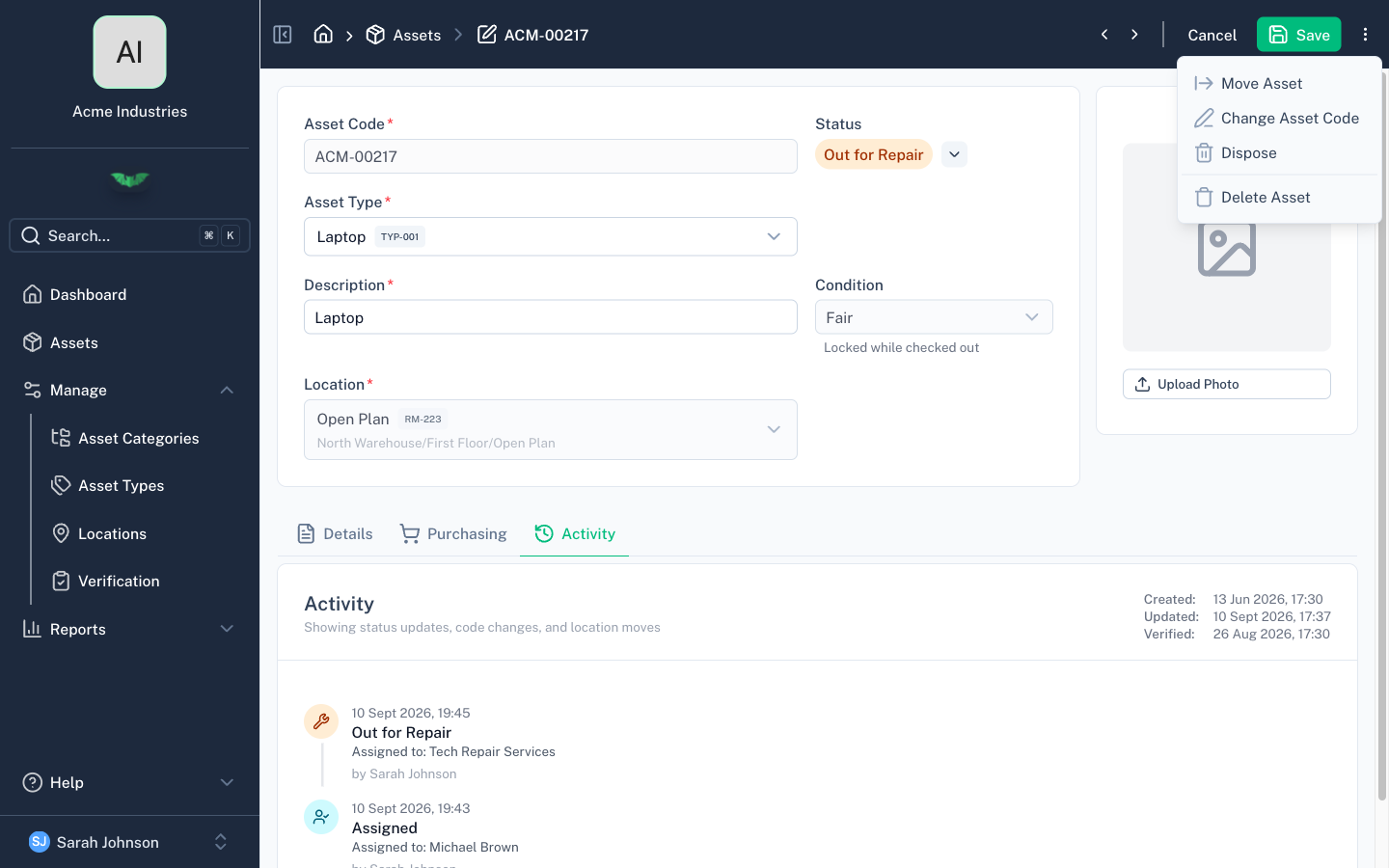
The actions menu on an asset provides:
Move
Reassign the asset to a different location. This records a location change event in the asset's history.
Dispose
Mark an asset as disposed. Disposed assets are hidden from the default asset list view but remain in the system and can be filtered for. Disposal is recorded in the event history.
Restore
Undo a disposal. The asset returns to Available status and reappears in the default list.
Change Code
Update the asset's unique code. The previous code is preserved in the asset's history and details as Previous Asset Code.
Required Fields
The minimum required to create an asset is: code, description, type, location, and status. Everything else is optional (unless your organisation has made condition or custom fields required).